
Features
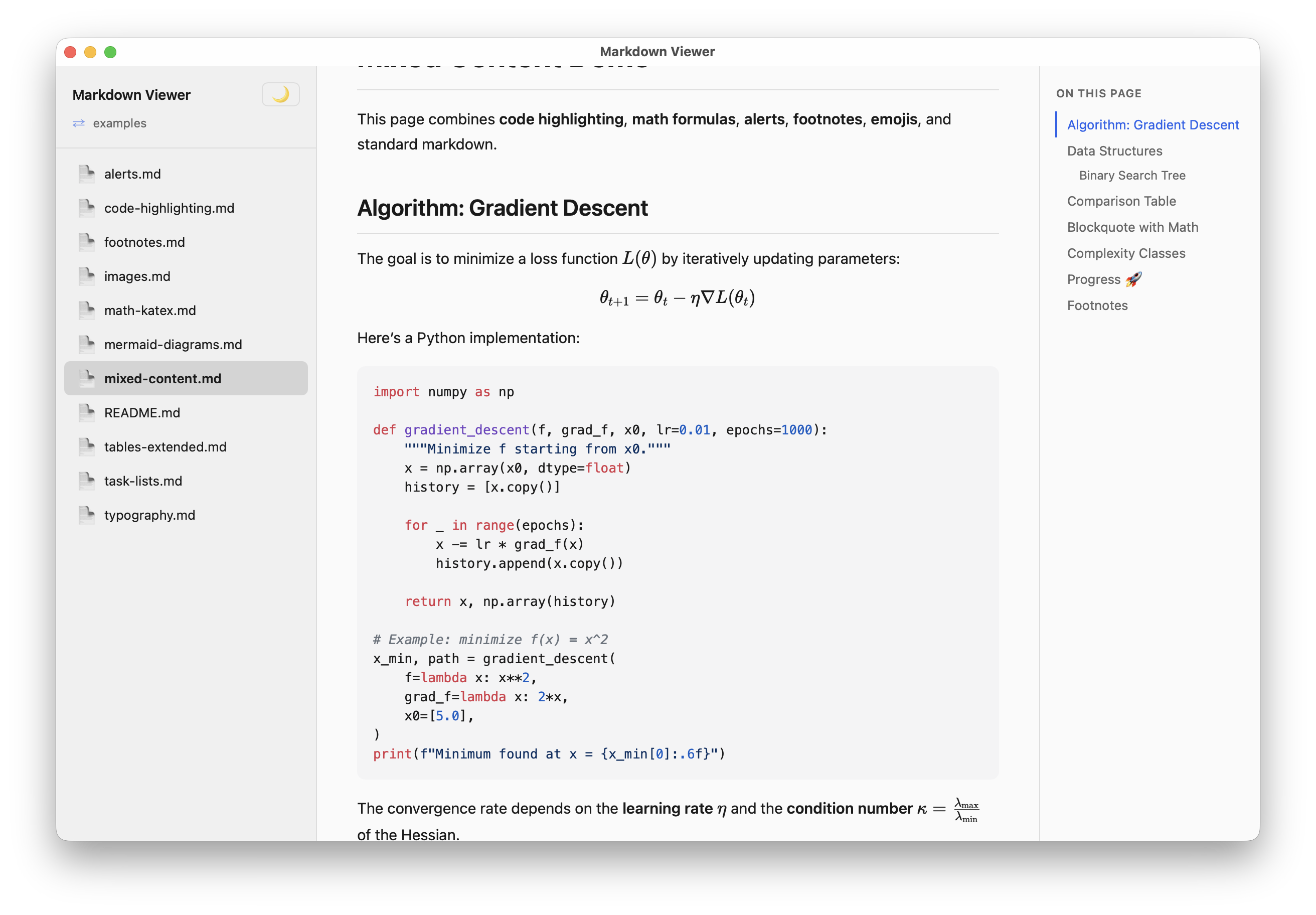
Folder Browsing
Open any folder and navigate its directory tree via the sidebar. The sidebar shows directories first (sorted alphabetically), then .md files. Dotfiles and non-Markdown files are filtered out.
A breadcrumb bar at the top shows your current location and lets you navigate back to parent directories.
Multiple Windows
Two folders can be read side by side, each in its own window:
- File › New Window (
Cmd+N) opens an empty window on the welcome screen. - File › Open Folder in New Window… (
Shift+Cmd+N) picks a folder and opens it in a new window, leaving the current window untouched.
The Window menu lists every open window and switches to the one you pick (the active one is checked). Each window is named after the document it shows — or its folder when no document is open yet — so the list stays readable.
It also carries the usual macOS window commands:
- Minimize, Zoom, Enter Full Screen
- Fill — the window takes the whole screen minus menu bar and Dock
- Center — keeps the size, centers the window on its screen
- Move & Resize — halves (Left, Right, Top, Bottom), quarters, and Return to Previous Size, which undoes a run of arrangements in one step
- Bring All to Front — raises every window, keeping the active one in front
These act on the frontmost window and use the screen it currently sits on. They have no keyboard shortcuts on purpose: macOS already binds Control-Option-arrows to its own window tiling, which keeps working alongside them.
Windows are fully independent — document, outline, search state and scroll position are per window. Menu commands and their shortcuts (Find, Print, Export as PDF, Open Recent, Toggle Dark Mode…) act on the frontmost window only. The recent-files list is shared (the native "Open Recent" submenu is app-wide). Preferences (theme, fonts, language) are stored once for the app and applied when a window opens, so changing them updates the window you changed them in and every window opened afterwards.
Markdown Rendering
Full GitHub-Flavored Markdown (GFM) support including:
- Headings with auto-generated IDs
- Tables (with extended colspan via
||) - Code blocks with syntax highlighting
- Blockquotes
- Task lists with checkboxes
- Strikethrough
- Links and images
GitHub Alerts
Support for GitHub-style alert callouts:
> [!NOTE]
> Useful information

> [!TIP]
> Helpful advice

> [!WARNING]
> Something to be careful about

> [!IMPORTANT]
> Critical information

> [!CAUTION]
> Potential risks
Footnotes
Reference-style footnotes with automatic backlinks:
Here is a statement[^1].

[^1]: This is the footnote content.
Math (KaTeX)
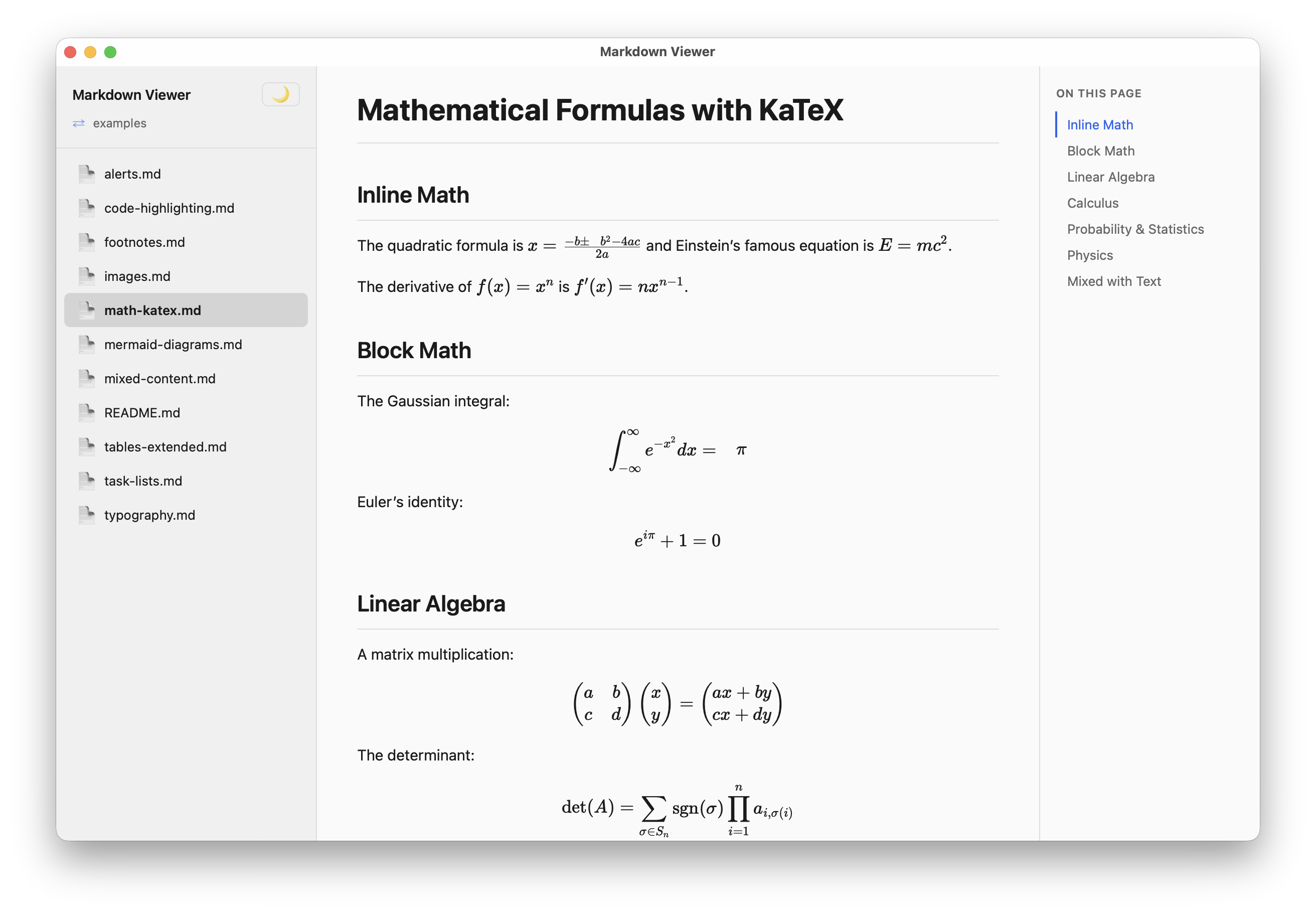
Inline math with $...$ and display math with $$...$$:
Inline: $E = mc^2$

Display:
$$\int_0^\infty e^{-x^2} dx = \frac{\sqrt{\pi}}{2}$$
Mermaid Diagrams
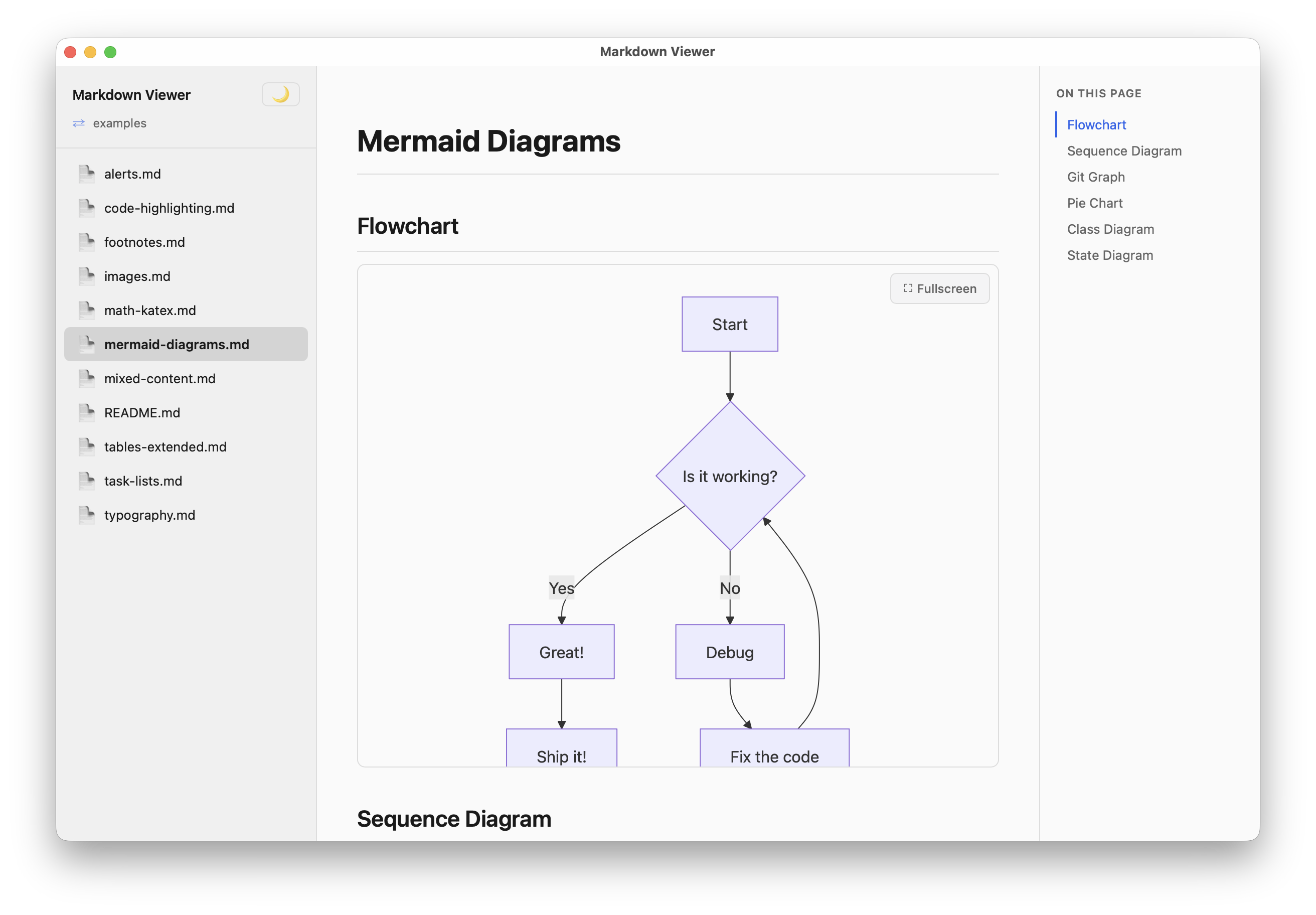
Fenced code blocks with the mermaid language are rendered as diagrams. Each diagram has a fullscreen button for detailed viewing. Syntax errors show the source code as a fallback.
```mermaid
graph TD
    A[Start] --> B{Decision}
    B -->|Yes| C[OK]
    B -->|No| D[Cancel]
```
Syntax Highlighting
Code blocks are highlighted with highlight.js. Specify the language after the opening fence, or let auto-detection pick it up.
A Copy button appears on each code block for quick copying.
Smart Typography
Straight quotes are automatically converted to curly quotes. Apostrophes, em dashes, en dashes, and ellipses are also handled:
| Input | Output |
|---|---|
"hello" | "hello" |
don't | don't |
--- | em dash |
-- | en dash |
... | ellipsis |
Emoji Shortcodes
Over 80 emoji shortcodes are supported:
:rocket: :heart: :fire: :star: :tada:Image Lightbox
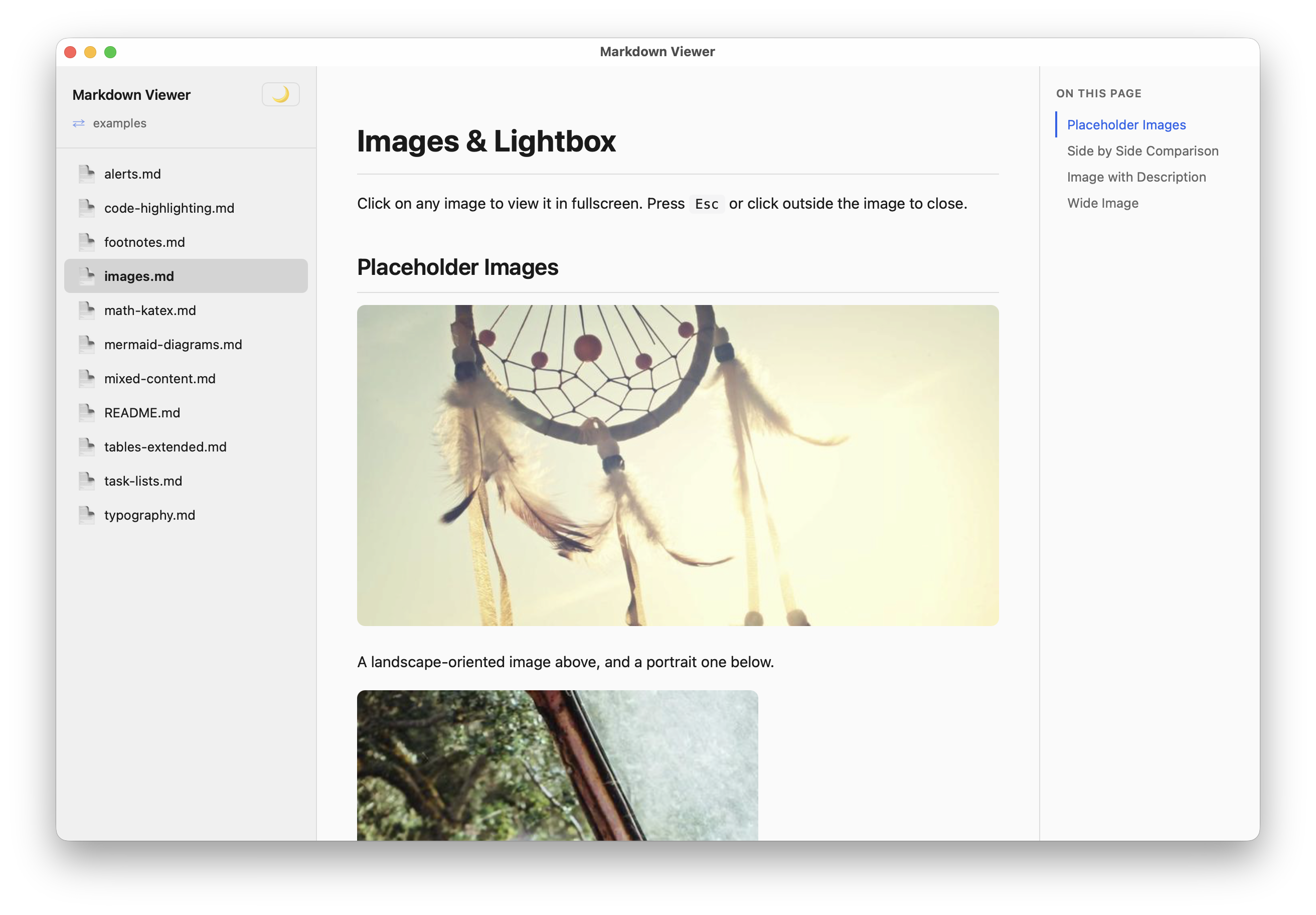
Click any image in the rendered Markdown to open it in a fullscreen overlay. Press Escape or click outside the image to close.
Outline Panel
An auto-generated table of contents appears on the right side, built from h2 and h3 headings. The active heading is highlighted as you scroll through the document.
Dark Mode
The app follows macOS system appearance by default. Click the theme toggle button (sun/moon icon) to switch manually. Your preference is persisted across sessions.
PDF Export
Click the PDF button in the sidebar header to export the current document as a PDF file. The export uses the native macOS WKWebView.createPDF API for high-quality rendering. A save dialog opens with a default filename based on the current markdown file. UI elements (sidebar, outline) are hidden during capture so only the document content is exported.
Session Persistence
The app remembers the last opened folder and restores it on next launch.
Open Single Files
You can open individual .md files directly:
- CLI:
mdv ~/docs/README.md - Finder: Right-click a
.mdfile → "Open With" → Markdown Viewer
The app loads the file and displays its parent directory in the sidebar for easy navigation to related documents. File associations are declared for .md, .markdown, and .mdx extensions.
Relative Link Navigation
Click any .md link in a document to navigate to that file. Anchor links (#section) scroll to the target heading. External links open in the default browser.